


Football goal alerts on Telegram
Get the goals, cards and results of the teams you follow in a Telegram channel while the match is on. Messages are posted by your own Telegram bot, so they carry its name and picture, and you decide what they say.
It works for a single match, a team, a player or a whole league. Setup takes a few minutes and no code.
What you get
A message in your channel for each event you pick:
- Kick-off
- Goals, with the scorer and the assist when our data has them
- Yellow and red cards
- Substitutions
- Half-time score
- Full-time result
- For a league or a team: new YouTube videos and Shorts from the channels we track for it
Follow a whole league, one team, one player or a single match. A league covers all its matches. A player gets only the events that name them: goals, assists, cards and substitutions. A single match stops by itself after the final whistle.
Messages are plain text with emoji, and they show up like any other post in the channel, notifications included. Typical uses: a club fan channel that posts every goal, a league channel with all the weekend's results, or a private channel just for you.
Example messages
With the default messages, a match looks like this in your channel:
🚀 Riverside FC vs Northbridge Athletic (Coastal League) has started in: Riverside Park. Referee: M. Keller
⚽ Goal from J. Moreno for Riverside FC with a pass from L. Okafor: 1 - 0, 31m
🟨 Yellow card for T. Brandt from Northbridge Athletic
⏸️ Half Time! Riverside FC leads against Northbridge Athletic: 1 - 0
↔️ Riverside FC: S. Ilic stands in for J. Moreno. 63m
🏁 Riverside FC defeats Northbridge Athletic: 1 - 0
The teams and players are made up for this example.
Set it up
You need a Telegram account and a channel where you're an admin.
1. Create a channel, or use one you run
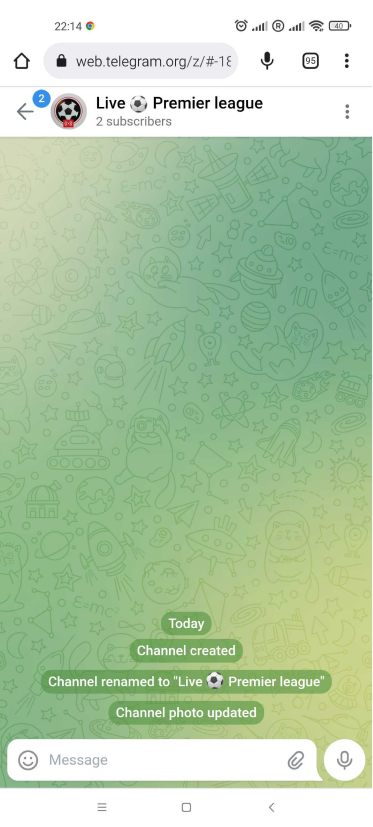
Create a new channel in Telegram, public or private, or use one where you're an admin.
2. Create your bot with BotFather
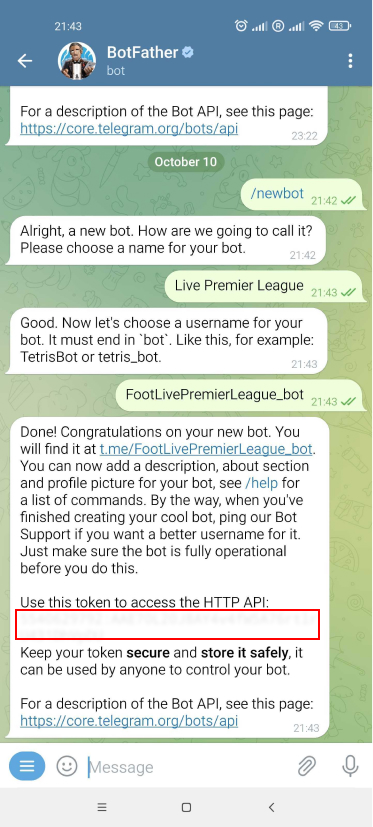
Open a chat with @BotFather, the official Telegram account for creating bots, and send /newbot. Choose a display name, then a username that ends in "bot", for example riverside_goals_bot.
BotFather replies with a token that looks like 123456789:AAH… Copy it: it's the bot token you'll paste later. Keep it private, because anyone who has it can post as your bot.
3. Make the bot an admin of the channel
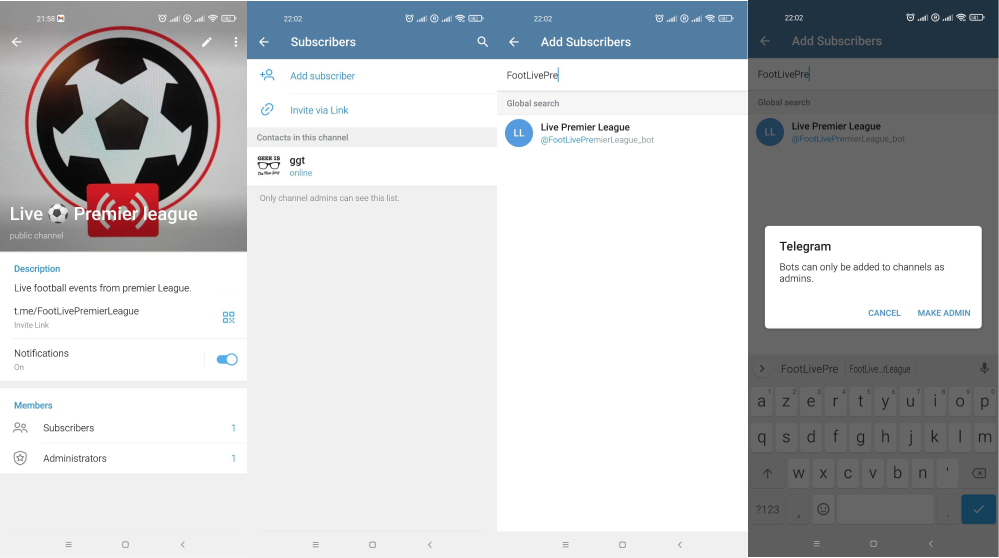
Open the channel's settings, go to Administrators and add your bot. It needs the right to post messages.
4. Find the channel ID
Open the channel in Telegram Web (web.telegram.org/a). The address ends with # and the channel ID, for example #-1001234567890.
Paste the ID as it is if it starts with -100. Otherwise paste only the digits, without a minus sign: we add -100 for you.
5. Create the integration
- Sign in on Football Live Score and open the page of the league, team, player or match you want to follow.
- Select Create integration, give it a name and choose Telegram as the destination.
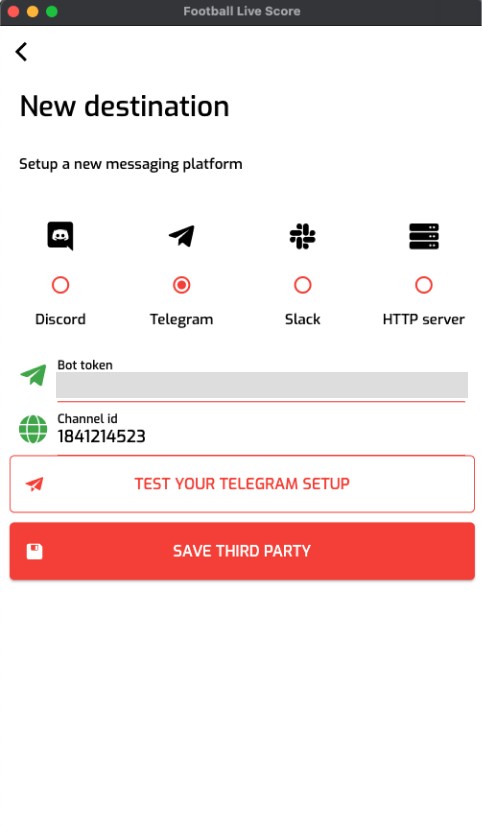
- Paste the Bot token and the Channel ID, then select Send test message. A test message from your bot should appear in the channel within a few seconds.
- Pick the events. Goal is already selected.
- Edit the messages if you like, then select Create integration. Tick Save this destination for next time to reuse this channel for another team or league.
In the app, tap the broadcast button on a match, team, league or player screen, add Telegram as a destination with the same bot token and channel ID, then pick the events and start the broadcast.
Customise the messages
Each event has its own message template, with placeholders that are filled in when the event happens. On the website, the default messages are in the language of the page you're on, and you can rewrite them in any language.
Add several templates for the same event and one is picked at random each time, so the channel doesn't repeat the same line all match.
Common placeholders: {home_team}, {away_team}, {league}, {score}, {time}, {scorer}, {assist}, {team_scoring}, {player_card}, {team_card}, {player_entering}, {player_leaving}, {winner}, {loser}. The full list is in the message customisation guide.
Template: ⚽ GOAL! {scorer} ({time}') — {home_team} {score} {away_team}
Message:  ⚽ GOAL! J. Moreno (31') — Riverside FC 1 - 0 Northbridge Athletic
Questions
Do I need to write any code?
No. You create a bot with BotFather, make it an admin of your channel and paste two values into the form.
Why do I need my own bot?
Telegram only lets a bot post in a channel once the channel's admins have added it. With your own bot, the messages carry the name and picture you chose, and you can stop them at any time by removing the bot from the channel.
The test message doesn't arrive. What should I check?
Check that the bot is an admin of the channel, that you used the channel's number and not its @name, and that you copied the whole token.
Can I send the same events to several channels?
Yes. Create one integration per channel. The same bot can post in all of them, as long as it's an admin of each.
How quickly do messages arrive?
As soon as our live data has the event: expect the message within a few minutes.
How do I pause or delete an integration?
On the website, open your account, then Integrations. Each integration shows its status, how many messages were sent or failed, a log of recent deliveries, and buttons to pause, edit or delete it. In the app, your broadcasts are in the account tab.
What happens after the final whistle?
An integration that follows a single match stops by itself after full time. League, team and player integrations keep going, match after match, until you pause or delete them.
Which competitions can I follow?
Every league and cup on our coverage page.
Does it cost anything?
Integrations are free at the moment. A subscription may come later.
Other integrations
Guides: How to start a broadcast · Message placeholders